In this article you will learn how to add a channel to your team in Microsoft Teams.
Start by visiting My Apps. You can find this by navigating to linfield.edu/myapps which is a redirect to Microsoft My Apps.

Tap or click on MS Teams

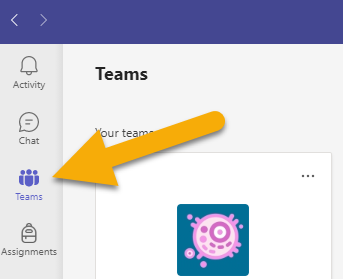
Click on the Teams icon in the left hand navigation pane. This will list Teams that you are a member of.
Click or tap on the ellipsis (three dots) to the right of the Team name. This will open up Team options. Click or tap on “Add channel”.

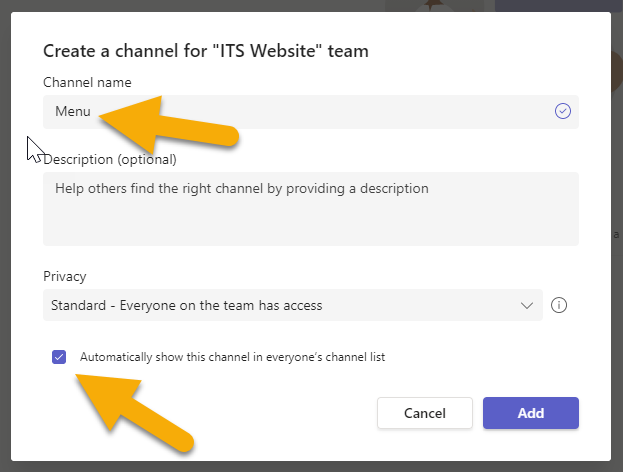
Give the channel a name in the Channel Name Field and if you want everyone to have the channel by default make sure to enable the check on “Automatically show this channel in everyone’s channel list”. When you are done with the setup click on “Add”.
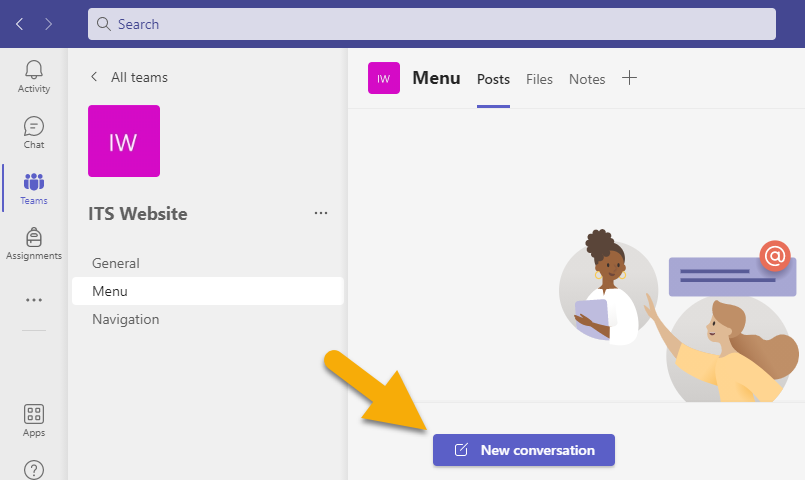
You have now created a new channel. This will allow you to create a new conversation based on the channel name. Click or tap on “New Conversation” to start typing your message.